
You have an IFC 4.3 bridge that says nothing about time. This guide takes that file and, in 13 steps (about 40 minutes), adds a construction schedule, links every task to the geometry and renders an MP4 of the bridge being built. Everything is done by clicking in Bonsai 0.8.5 (free, inside Blender 5.1), and every screenshot below is a real Bonsai screen with the click targets marked 1 2 3.
Starting model: the BR-01 bridge (IFC4X3_ADD2, 203 physical products) with geometry intact and zero work plans, schedules and tasks.
1 · What 4D actually is in IFC
4D = 3D + time. Your model already answers what and where. 4D adds when it gets built.
The key thing to understand: IFC contains no animation. It stores a schedule as plain data. The animation is computed afterwards by software, here Bonsai. So a 4D IFC is really three things that have to be connected:
IfcWall · IfcSlab · IfcBeam
IfcBearing · IfcRailing
“this task builds that element”
└ IfcWorkSchedule
└ IfcTask (T10, T10.1 …)
ScheduleStart / Finish
+ IfcRelSequence (order)
Naming a task “Foundations A1” does not connect it to any footing. The link (IfcRelAssignsToProduct) has to be made on purpose. That single relationship is the heart of 4D.
The IFC vocabulary you need (and no more)
| Entity | In plain words | Role |
|---|---|---|
IfcWorkPlan |
a folder for schedules | optional, keeps things tidy |
IfcWorkSchedule |
the schedule | holds the task tree |
IfcTask |
a job or construction stage | “Foundations”, “Deck casting”… |
IfcTaskTime |
the task’s dates | start, finish, duration |
IfcRelNests |
nesting | child task inside a parent (T10 → T10.1) |
IfcRelAssignsToProduct |
“this task builds this element” | what the animation is built from |
IfcRelSequence |
dependency | “B starts after A finishes” |
IfcLagTime |
delay on a dependency | e.g. “+3 days after A” |
IfcRelAggregates |
decomposition | a railing made of posts – not a task link |
How the film is derived
For every element that a task builds, Bonsai writes keyframes:
- before the task starts: the element is invisible (not built yet)
- during the task: green (under construction)
- after it finishes: light grey (completed)
Three rules of 4D
1) A task with no dates animates nothing. 2) A task with no assigned elements animates nothing. 3) An element with no task stands there from the very first frame.
2 · What you need
| Item | Version / file |
|---|---|
| Blender | 5.1 |
| Bonsai | 0.8.5 (Edit → Preferences → Get Extensions → search “bonsai”) |
| Starting model | Bridge_START_no_4D.ifc – the BR-01 bridge, geometry intact, zero work plans, schedules and tasks |
| For comparison | 03_Bridge_BEST_IFC4x3.ifc – the same bridge with the finished schedule |
IFC2X3 files cannot do this
Bonsai does not draw the Work Schedules panel for IFC2X3. 4D in Bonsai needs IFC4 or newer. That is one of the practical reasons to deliver bridges in IFC 4.3.
Tip before you start: the Properties column is narrow by default and clips button labels. Drag the border between the 3D viewport and Properties to the left until it is about 420–520 px wide. For the long forms in Steps 4–9, hover over Properties and press Ctrl+Space to maximise it (same key to restore).
3 · The plan we will enter
Five construction stages. The first two are split into one child task per support (A1, P1–P4, A2), so 5 + 12 = 17 tasks. These are exactly the dates stored in the reference model, so you can compare at the end.
| ID | Task | Start | Finish | Elements to link (Outputs) |
|---|---|---|---|---|
| T10 | Stage 1 – Foundations | 2027-04-05 | 2027-04-29 | — (children carry the links) |
| T10.1 … T10.6 | Foundations A1, P1, P2, P3, P4, A2 | 2027-04-05 | 2027-04-09 | per support: IfcFooting + IfcSlab (blinding) + IfcEarthworksFill (crushed stone bed) |
| T20 | Stage 2 – Piers and abutments | 2027-04-30 | 2027-06-03 | — (children) |
| T20.1 / T20.6 | Structure A1 / A2 | 2027-04-30 | 2027-05-04 | abutment front wall + 2 wing walls (IfcWall) |
| T20.2 … T20.5 | Structure P1 … P4 | 2027-04-30 | 2027-05-04 | pier wall (IfcColumn) |
| T30 | Stage 3 – Deck casting and bearings | 2027-06-04 | 2027-07-18 | bridge deck slab, 2 end diaphragms, 4 bearings |
| T40 | Stage 4 – Edge beams / approach slabs | 2027-07-19 | 2027-08-12 | 8 edge beams / wing-wall edge beams, approach slabs with blinding and stone beds (14 elements) |
| T50 | Stage 5 – Railings and equipment | 2027-08-13 | 2027-08-27 | 2 railings and their 100 posts/handrails (IfcMember) |
Total span: 5 April → 27 August 2027 = 144 days. Stages are chained T10 → T20 → T30 → T40 → T50 with FINISH_START.
Step 1 · Load the model
▶ Click path
- File → Open IFC Project
- Pick
Bridge_START_no_4D.ifc→ Load Project
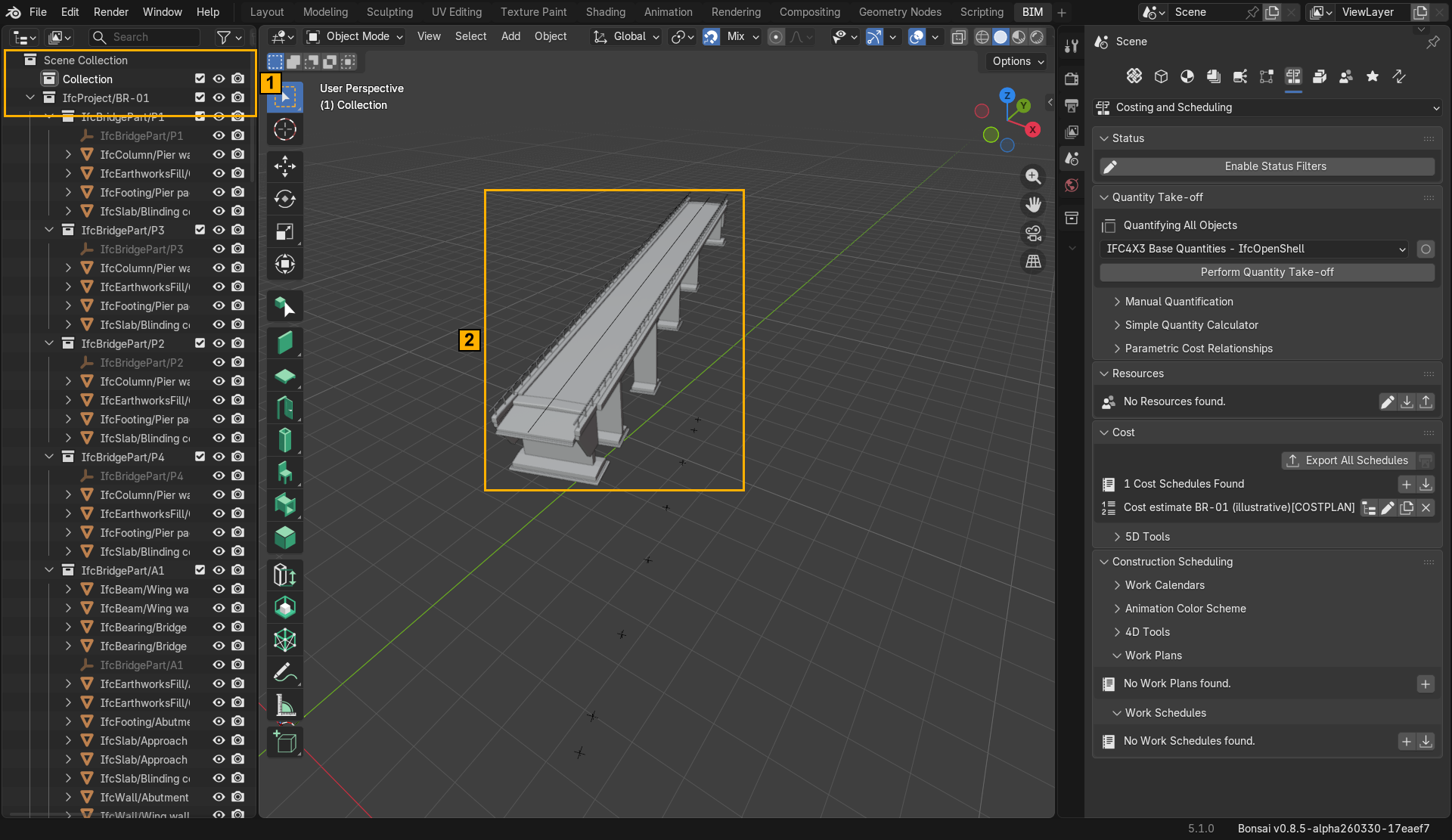
IfcProject/BR-01 with its bridge parts; 2 the bridge is in the 3D viewport. Real Bonsai 0.8.5 screenshot of Bridge_START_no_4D.ifc.IfcProject/BR-01. There are no schedules yet.Step 2 · Find the scheduling panel
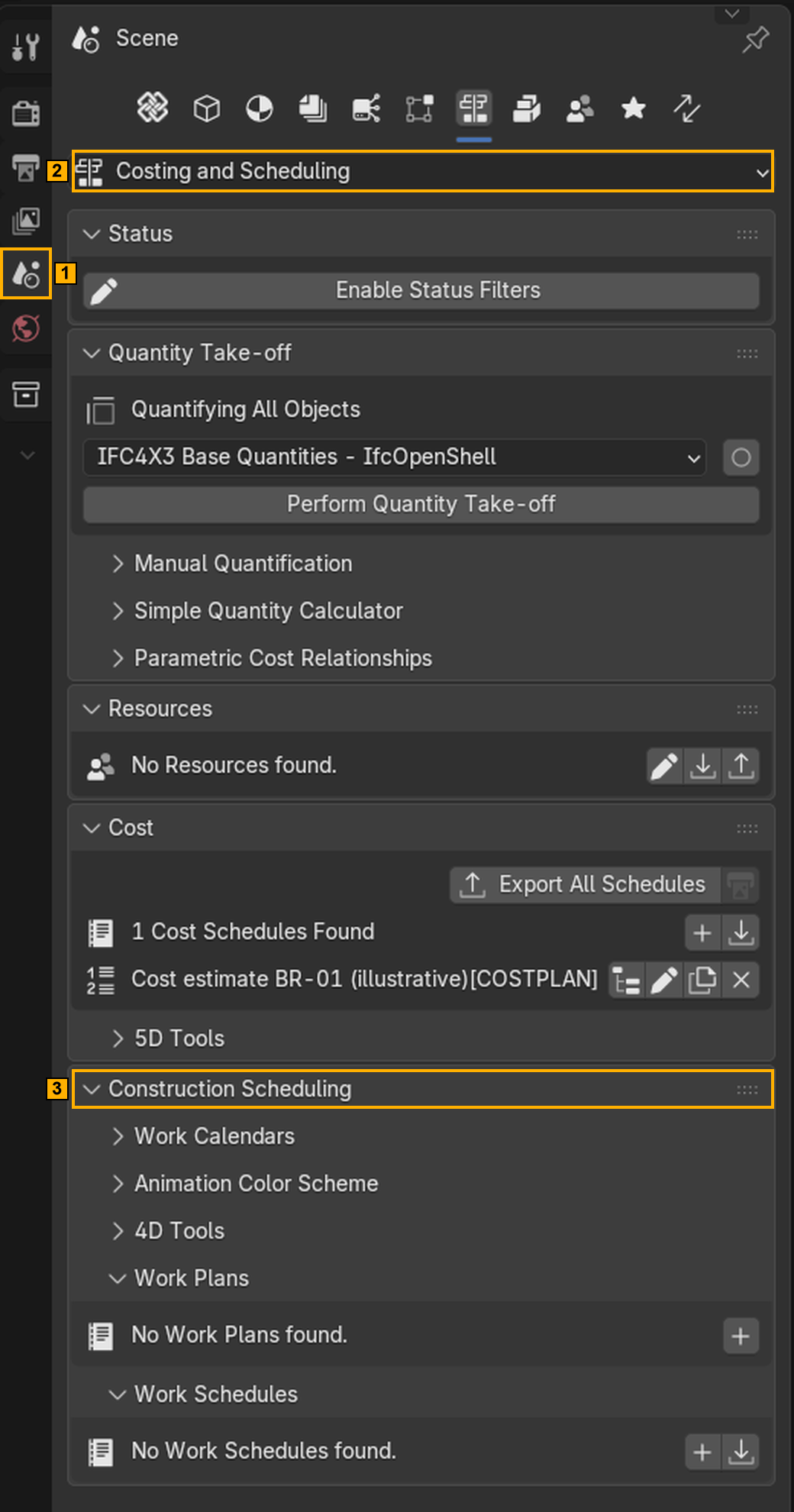
▶ Click path
- Right column Properties → the Scene tab (cone-and-sphere icon) 1
- Open the tab selector at the top and choose Costing and Scheduling 2
- Scroll down to Construction Scheduling 3 (it contains Work Plans and Work Schedules)
Step 3 · Create the work plan and the work schedule
IfcWorkPlan is a folder; IfcWorkSchedule is where the task tree lives. Right now both lists are empty.

▶ Click path
- Work Plans → + 1 – a plan appears. Click its pencil and name it
Construction plan BR-01. - Work Schedules → + 2 – a dialog opens. Name:
Construction schedule BR-01, Type: PLANNED → OK. - Optional: the first icon on the plan row lets you attach the schedule to the plan.

Construction schedule BR-01[PLANNED]. 1 plan row: first icon links schedules to the plan · 2 schedule row: pencil = edit name/type · 3 schedule row: first icon = Enable Editing Work Schedule Tasks (next step).Construction schedule BR-01[PLANNED]. It has no tasks yet.Step 4 · Add the five construction stages
Click the first icon on the schedule row (3 in the previous figure). The panel switches to task editing: schedule tools, task tools and the task tree appear.
Do not click the other icons on that row
Left to right they are: edit tasks (the one you want), edit attributes (pencil), duplicate and delete. They have no text labels.
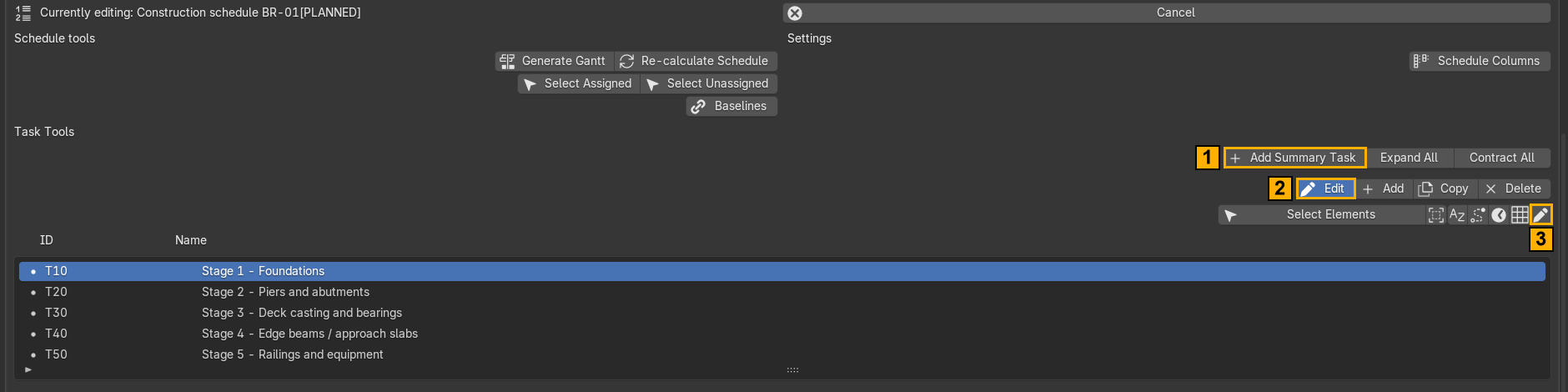
▶ Click path – repeat five times
- Add Summary Task 1 – a new top-level task appears in the tree.
- Select it, click Edit 2, then the pencil 3 in the tool row that appears.
- In the form fill in Name, Identification and PredefinedType, then confirm with ✓ (see below).
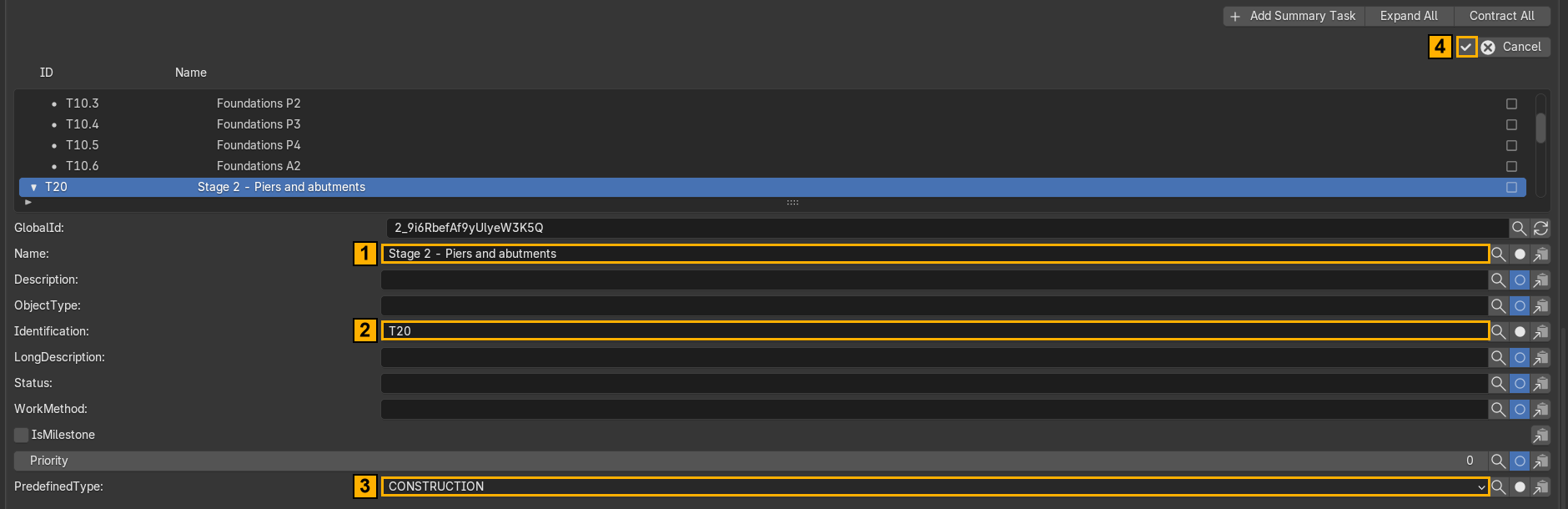
CONSTRUCTION, then confirm with 4 the ✓ button (top right).Use these names and IDs:
| Identification | Name | PredefinedType |
|---|---|---|
| T10 | Stage 1 – Foundations | CONSTRUCTION |
| T20 | Stage 2 – Piers and abutments | |
| T30 | Stage 3 – Deck casting and bearings | |
| T40 | Stage 4 – Edge beams / approach slabs | |
| T50 | Stage 5 – Railings and equipment |
Step 5 · Add a child task for each support
Stages 1 and 2 are done support by support. Child tasks are what you will attach geometry to later; the parent only summarises them (IfcRelNests stores the hierarchy).
▶ Click path
- Select T10 in the tree 1.
- Click Add 2 six times. Each click adds a child under the selected task.
- Edit each child (Edit → pencil):
T10.1“Foundations A1”,T10.2P1,T10.3P2,T10.4P3,T10.5P4,T10.6A2. - Repeat under T20 for
T20.1 … T20.6(“Structure A1”, P1–P4, A2). - T30, T40 and T50 stay without children.

Step 6 · Enter the dates
Select a task, click Edit, and pick the clock icon (it is the fourth icon of the tool row below – Enable Editing Task Time).
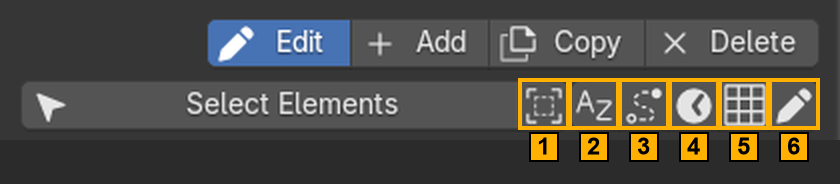
- 1 auto-select elements when you click a task · 2 reorder (A–Z) · 3 sequence – dependencies (Step 9)
- 4 clock – task time (this step) · 5 task calendar · 6 pencil – name / attributes (Step 4)
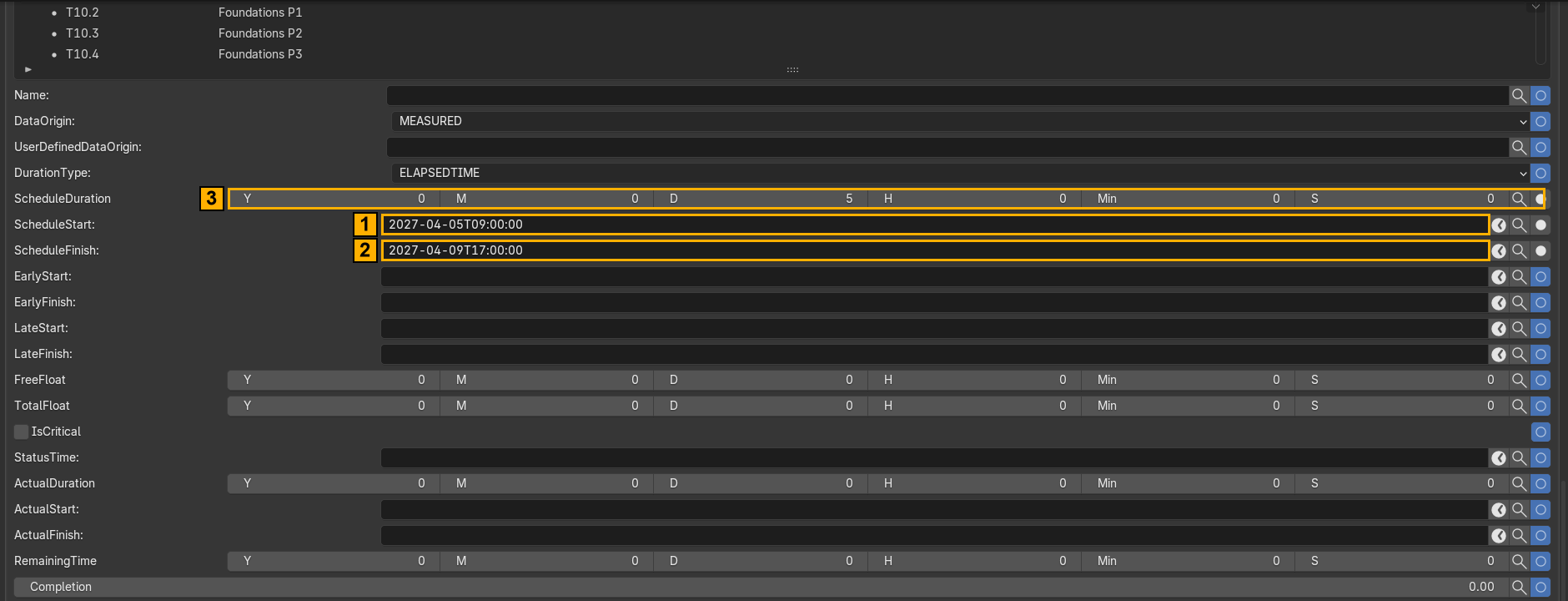
2027-04-05T09:00:00. Confirm with the ✓ button at the top of the panel.▶ Click path – for every task
- Select the task → Edit → clock icon.
- Fill
ScheduleStartandScheduleFinishin the format2027-04-05T09:00:00(the duration follows). - Confirm with ✓ at the top of the task area.
Use the dates from the plan in section 3: T10.x = 5–9 April, T20.x = 30 April–4 May, and the stage rows for T10, T20, T30, T40, T50.
Heads-up: identical dates = one big jump
If all six children have the same dates they all appear at once. In the reference model they do, and the film shows five “jumps” with dead time between them. To get a moving construction front, stagger the child dates (A1 first, then P1, P2 …) or add lag times in Step 9.
Step 7 · Link the tasks to the geometry
This is the step that turns a list of names into 4D. It creates IfcRelAssignsToProduct.
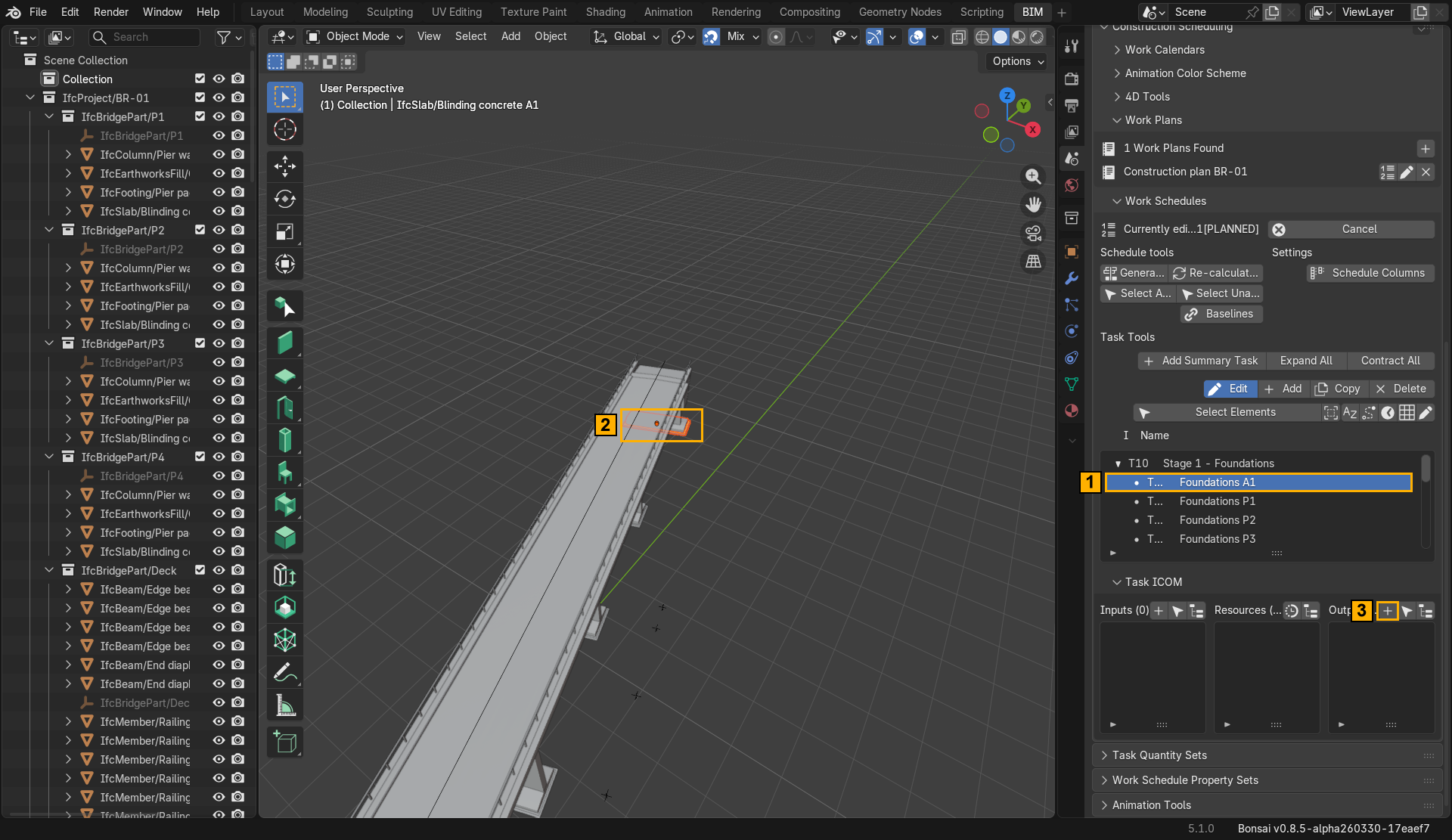
▶ Click path – for every leaf task
- Select the leaf task (e.g.
T10.1) in the tree 1. - In the 3D viewport (or Outliner) select the elements it builds 2 – see the table in section 3. Box-select or Ctrl-click in the Outliner works well.
- Open Task ICOM and click + in the Outputs column 3.
- The counter changes from Outputs (0) to the number of assigned elements.
ICOM stands for Inputs / Controls / Outputs / Manpower. 4D uses Outputs: what the task produces. The small arrow icon next to + (Select Task Related Products) selects a task’s outputs in 3D, which is a quick way to double-check a link.

Assign leaf tasks, not parents. For T10.x that is the footing, the blinding slab and the crushed-stone bed of each support; for T20.x the walls or pier wall; for T30, T40, T50 the elements listed in section 3.
Step 8 · The railing trap: assign the members too
Assigning the two IfcRailing objects to T50 is not enough. Their 100 posts and handrails are separate IfcMember objects connected to the railing only through IfcRelAggregates (decomposition). Bonsai’s animation reads task assignments only and does not walk down the decomposition. Result: 100 railing members hang in mid-air from the very first frame.
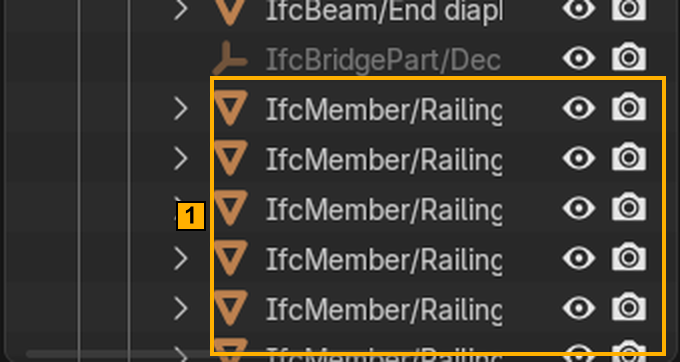
IfcMember objects (100 of them). They must be assigned to T50 too.▶ Click path
- Select task T50.
- In the 3D viewport select the two railings and all
IfcMember/Railing…objects (in the Outliner: click the first member, Shift-click the last). - Task ICOM → Outputs → +
Step 9 · Add dependencies between stages
Dependencies (IfcRelSequence) say what has to finish before something can start. Chain the five stages with FINISH_START.

▶ Click path – four times (T10→T20, T20→T30, T30→T40, T40→T50)
- Select the later task, e.g. T30 1.
- Edit → sequence icon (third icon of the tool row) – the mode label changes to Cancel and arrows appear on the other rows.
- On the row of the task that must come first (T20) click the ← icon 2 – it becomes T30’s predecessor.
- To delay a task, use Add Time Lag 3 on the link, or Edit Sequence to change the type. New links default to
FINISH_START. - Finish with Cancel (it only leaves sequence mode).
Afterwards you can use Schedule tools → Re-calculate Schedule so dates follow the dependencies and lags. Re-check the dates: it can move tasks.
Tip
Dependencies do not change the animation unless dates or lags change. Adding a link between tasks that already have fixed non-overlapping dates alters nothing visible.
Step 10 · Check the data, then save the IFC
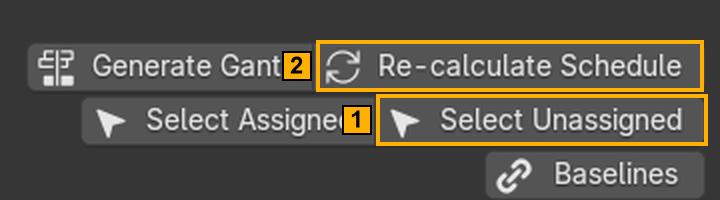
▶ Click path
- Schedule tools → Select Unassigned 1 – selects every element that has no task.
- Look at the selection. On this bridge only the alignment (
IfcAlignment) should remain, because it is not construction geometry. Any physical element left is missing from your plan. - Check dates and dependencies once more.
- File → Save IFC Project As… (or
Ctrl+S) and save asBridge_4D_working.ifc.
Saving the .blend is not saving the IFC
The schedule lives in the IFC. Blender’s own save only stores the scene. Save the IFC first, the .blend after.
Reference result for this bridge: 151 of 151 physical elements had a task. Compare with your count.
Step 11 · Animation settings
The task tree must stay active (Step 4). The Animation Tools panel is hidden until a schedule is active and is collapsed by default.
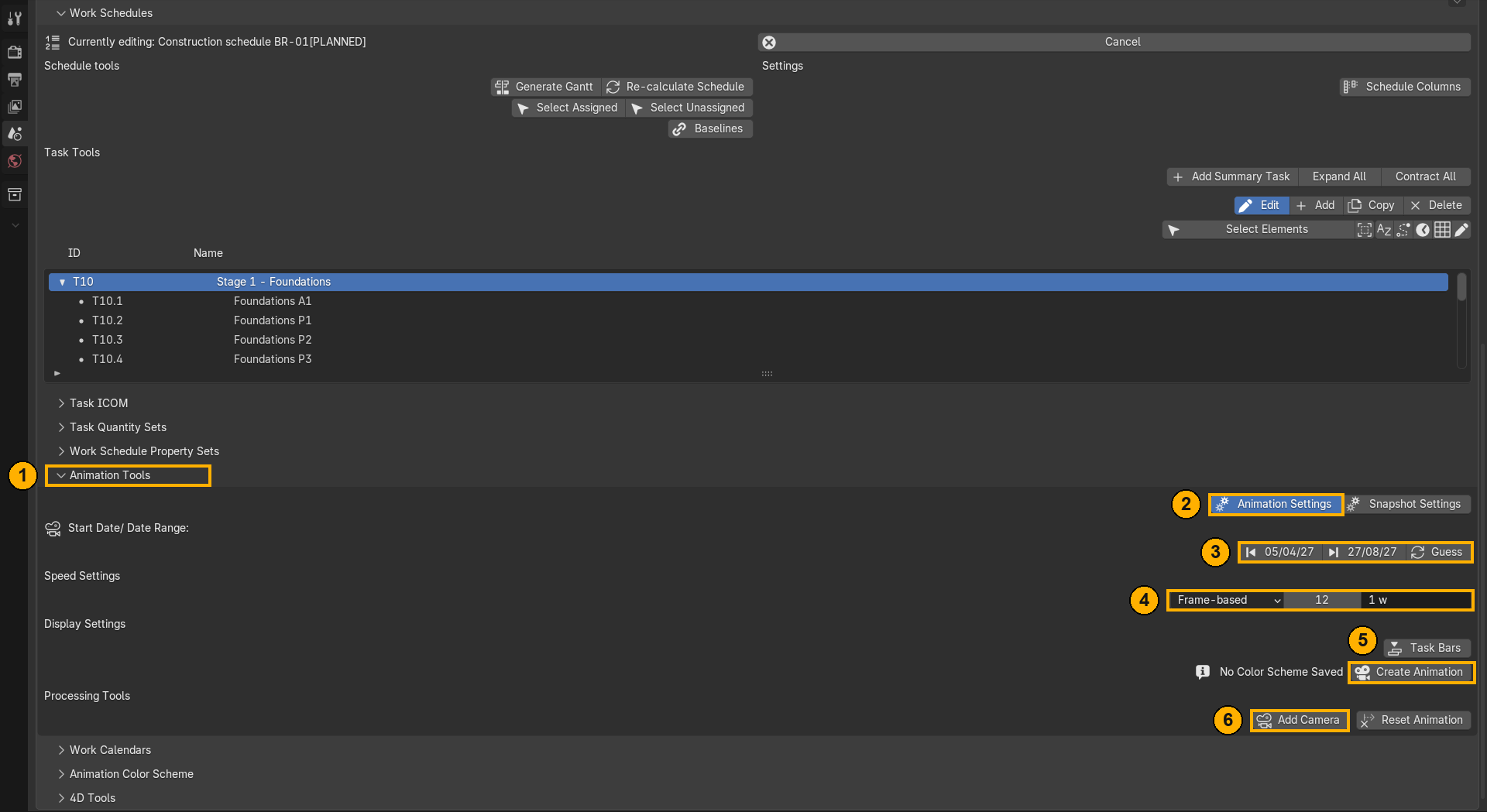
▶ Click path
- Expand Animation Tools 1.
- Switch on Animation Settings 2 (the alternative, Snapshot Settings, gives a single date instead of a film).
- Click Guess 3. Bonsai reads the earliest start and latest finish from the tasks:
05/04/27 → 27/08/27. Do not type dates by hand. - Speed Settings 4: choose Frame-based, set
12frames per1 w(week).
| Frames per week | Total frames | Film at 24 fps |
|---|---|---|
| 24 (default) | ~494 | ~20.6 s |
| 12 (recommended) | ~246 | ~10.3 s |
| 6 | ~124 | ~5.2 s |
Other modes: Duration-based (fix the film length) and Multiplier (speed vs. real time).
Step 12 · Create the animation and check it
▶ Click path
- Click Create Animation 5 (camera icon).
- Press
Spacein the 3D viewport to play, or drag the timeline to any date.
Bonsai now keyframes visibility and colour of every assigned element, sets the scene frame range and switches viewport shading to Object colour (without it all elements would look the same).
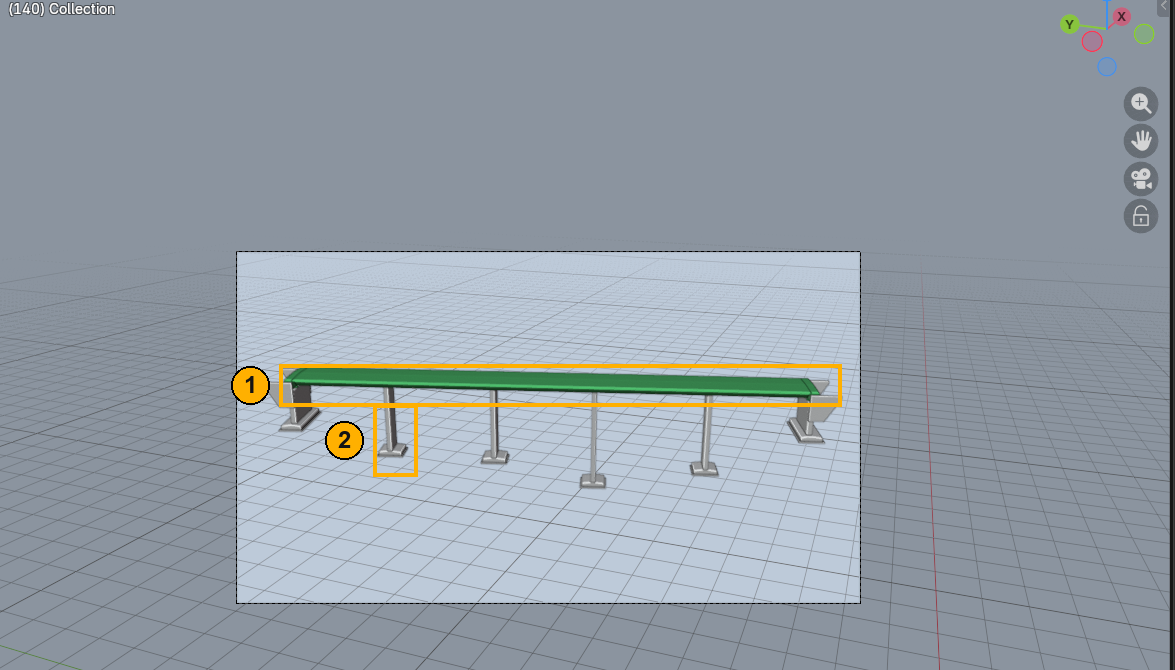
The finished film is the video at the top of this article: hidden, then green, then light grey, stage by stage.
Inspect frame 1 (should be empty), the transition between stages, and the last frame (everything light grey, no green).
Step 13 · Render the MP4
Bonsai builds the animation in the scene; the rendering itself is plain Blender.
▶ Click path
- Add Camera 6 (Animation Tools → Processing Tools), frame the bridge, and press
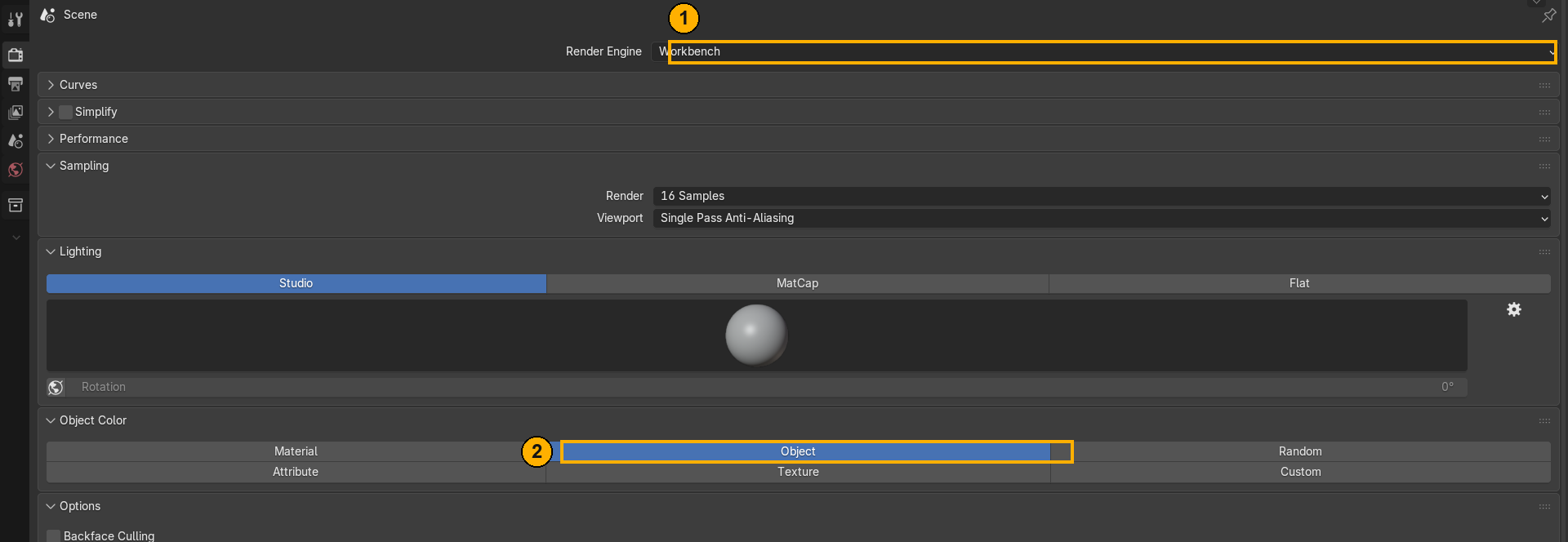
Numpad 0to look through it. - Properties → Render: Render Engine Workbench 1; in the Color section pick Object 2. Workbench draws object colour directly and is by far the fastest engine.
- Properties → Output: 1920 × 1080, 24 fps. The frame range was set by Bonsai.
- In Blender 5.x first set Media Type → Video, otherwise FFmpeg is not listed. Then File Format FFmpeg Video, Container MPEG-4, Video Codec H.264.
- Render → Render Animation (
Ctrl+F12). - Save the .blend to keep camera and settings.
Troubleshooting
| Symptom | Cause | Fix |
|---|---|---|
| No Work Schedules panel at all | File is IFC2X3 | Use IFC4 or IFC 4.3 |
| Animation Tools panel missing | No schedule is active | Step 4: click the first icon on the schedule row |
| Element visible from frame 1 | Not assigned to any task (or only via decomposition) | Step 7/8; use Select Unassigned |
| Nothing animates for a task | No dates, or no outputs | Steps 6 and 7 |
| Everything is one colour | Viewport not in Object colour | Bonsai sets it automatically; otherwise Shading → Color → Object |
| Green disappears almost immediately | Linear interpolation between the green and grey keyframes | Graph Editor → select Object Color keys → T → Constant |
| Long dead stretches in the film | Child tasks share dates, or tasks are short compared with their stage | Stagger dates, add lag times, or use a smaller frames-per-week value |
| FFmpeg not in the format list | Blender 5.x hides it under image media type | Media Type → Video first |
| Start over with the animation | — | Animation Tools → Processing Tools → Reset Animation |
Shortcuts worth knowing
- Import a ready schedule instead of typing it: File → Import supports CSV, Primavera P6 (.xml / .xer), Asta Powerproject (.pp) and Microsoft Project (.xml). You still do Step 7 (linking to geometry) yourself. Export goes the other way (File → Export: P6 or MS Project XML).
- Snapshot of a single date: Animation Tools → Snapshot Settings → pick a date → Create SnapShot.
- Gantt chart: Schedule tools → Generate Gantt (opens in the browser).
- Script: for a model that already has a schedule,
bonsai_4d.pybuilds the animation and the MP4 in one command and also handles the railing and colour-interpolation issues automatically.
Cheat sheet
| # | Do this | Where |
|---|---|---|
| 1 | Load the IFC | File → Open IFC Project |
| 2 | Find the panel | Properties → Scene → Costing and Scheduling → Construction Scheduling |
| 3 | Plan + schedule (PLANNED) | Work Plans +, Work Schedules + |
| 4 | 5 stages | first icon on schedule row → Add Summary Task → Edit → pencil |
| 5 | 12 child tasks | select T10 / T20 → Add |
| 6 | Dates | Edit → clock icon → ScheduleStart / Finish → ✓ |
| 7 | Assign geometry | select task, select elements in 3D → Task ICOM → Outputs + |
| 8 | Railing members | assign IfcMember objects to T50 as well |
| 9 | Dependencies | Edit → sequence icon → ← / → on rows |
| 10 | Check + save | Select Unassigned → Save IFC Project As… |
| 11 | Animation settings | Animation Tools → Animation Settings → Guess → Frame-based 12 / 1 w |
| 12 | Create | Create Animation → Space |
| 13 | Render | Add Camera → Workbench + Object colour → FFmpeg H.264 → Render Animation |
Enrolment open · closes 16 October
IFC Infrastructure Masterclass, Edition 2
From the structure of the file to a model that passes
This bridge is part of the model set we work on live. The schedule you have just built is one piece; the course covers the whole file: spatial structure, alignment and stationing, georeferencing, geometry and the data the client checks.
Every option includes the IFC 4.3 infrastructure models (bridge, road, rail, tunnel, utilities in one coordinate system), the 162-page Mapping Guide and the full Road to BIM IFC Viewer. In Workshop 6 we close the loop with IDS, BCF and AI: Claude Code and Codex write the checks, you learn to verify them.
Six live workshops · Mondays from 26 October 2026 · recordings with lifetime access
From €459. 14-day money-back guarantee on Practical Knowledge and Full Access. Enrolment closes on 16 October.
If you want to go further than one example, the IFC Infrastructure Masterclass works through the whole delivery workflow across six workshops – objects, relationships, properties, classification and information structure, on real infrastructure models.