7 Practical Grasshopper Automations for Steel Design in Tekla Structures
Tekla Structures is one of the world’s leading tools for steel design and detailing, and in many areas it is far ahead of its competitors. However, even in such an advanced environment, engineers still spend a lot of time on manual clicks connected to 3D modeling, drawing creation, quality assurance, exports, and project deliveries.
Many of these repetitive tasks can be eliminated with Grasshopper, so let’s look at seven practical Grasshopper automations for steel design in Tekla Structures.
Table of Contents
Workshop Recording
Below you can get the recording from the live session, where we presented all seven scripts in action. The recording and shared materials are still available, so you can go through the examples at your own pace.
Watch the recording
Below, you will also find short blog sections describing each practical application and how it can help automate steel design workflows in Tekla Structures.
1. Export and import to FEM software.
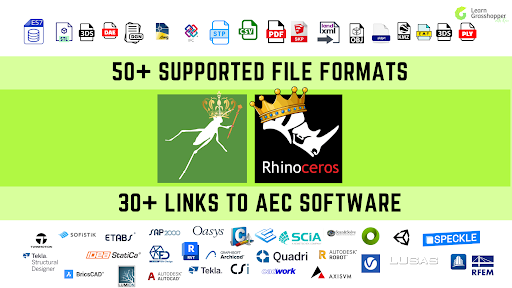
One of Grasshopper’s biggest strengths is that it can sit in the middle of a much larger workflow, not just inside Tekla. I has already published broad roundups of Grasshopper links across BIM and FEM software, so this is no longer a niche one-tool workflow. Her is full article – FEM in Grasshopper – The ultimate analysis software list
Export and import to FEM software
In practice, you are looking at an ecosystem of around 30 BIM and analysis connections when you combine the major roundups, and the FEM list alone already covers a long range of serious tools such as SOFiSTiK, SCIA, RFEM, Robot, ETABS/SAP2000, and FEM Design.That means you can build the steel logic once, export it to the right analysis environment, test options faster, and avoid rebuilding the same frame from scratch in several programs.
2. Quality assurance.
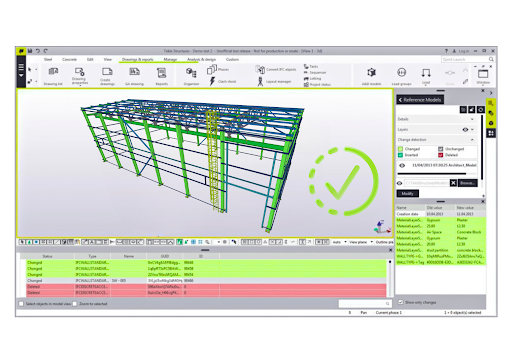
One of the biggest mistakes is thinking Grasshopper in Tekla is only for 3D modelling. It can also work like a robot that checks your model all the time. The Object Pipeline can automatically collect objects by type or selection filter, Create Filter can save those filters back to the model, Get Property and Get UDA Value can read report properties and user-defined attributes, Get All UDAs can audit full objects, and Color Display can highlight problematic elements directly in the Tekla view.
Quality assurance
This is exactly where practical QA scripts become valuable. You can check whether UDAs are filled in the right place, whether phases or classes are wrong, whether numbering is ready before drawings and exports, whether some beam or pile lengths fall outside your rules, and whether clashes or clearance issues should be solved before production starts.
3. Tekla components
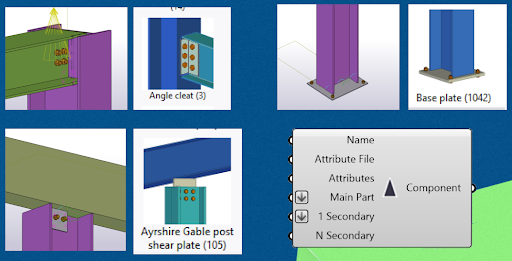
The Live Link includes a Component node that can create connections, seams, details, custom parts, and plugins, and you can drive them with catalog selections, preset files, or individual attribute values. This is extremely practical when you have repetitive steel conditions that already exist in your Tekla environment, but you want to stop placing them manually one by one.
Tekla compontents
A good example is a repeated base plate logic, a common stiffener set, or any detail where only a few variables change from one location to the next. The main challenge users hit here is not geometry. It is input logic. Some plugins need the Plugin Input component, some require a very specific input order, and some custom parts require two points in the API even if the manual command feels like a one-click action in Tekla. Once that logic is solved, you can reuse the same component with your own variables and remove a huge amount of repetitive clicking.
4. Creating your own components.
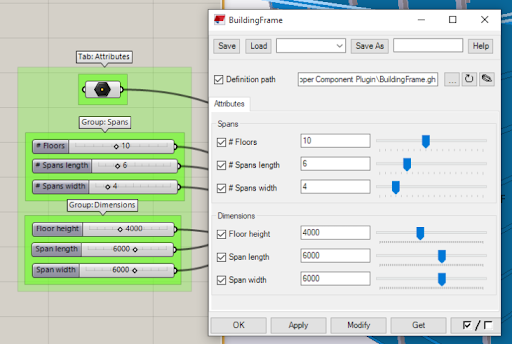
This is where Grasshopper becomes especially powerful for steel design teams. The official Grasshopper Component in Tekla behaves like a normal Tekla component in the Component Catalog, but it can trigger any Grasshopper definition in the background. The dialog can automatically expose parameters, sliders, value lists, text, images, tabs, and groups from the Grasshopper definition itself. In other words, for many company tools you no longer need to start by building a full custom C# component.
Creating your own components
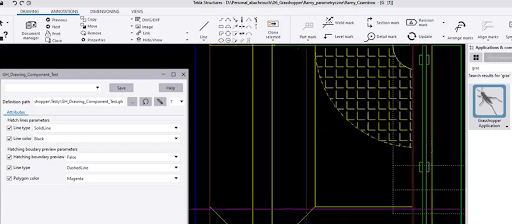
You can first build a reusable Grasshopper script with a clean interface and let your colleagues use it directly in Tekla. A company-specific end plate tool, a standard brace-node generator, or a repetitive support detail can be delivered much faster this way. If you want a second example from the same ecosystem, Grzegorz Olszewski creator of the Grasshopper Tekla drawing-link project created a Grasshopper Application feature that can run saved scripts in a macro-like way that can be used on the drawings as well.
Creating components
5. Drawing automation.
This is often where the biggest time savings appear, because drawings are one of the most repetitive parts of Tekla work. With open-source Grasshopper-Tekla Drawing Link can create assembly drawings, cast-unit drawings, and GA drawings, work with views, move views, run macros, insert level marks, and read or set drawing UDAs.
These examples already point to the right use cases, namely annotation automation, GA drawings with level marks, automating steel drawing production, bridge drawing automation, and fixing drawing UDAs and revision control. Standard Tekla drawing tools are often not enough for office-specific rules, while Grasshopper gives you a practical way to solve those drawing challenges with visual logic and only limited coding. For steel teams, that means fewer manual corrections, more consistent outputs, and much better control over company standards.
6. Automating deliveries.
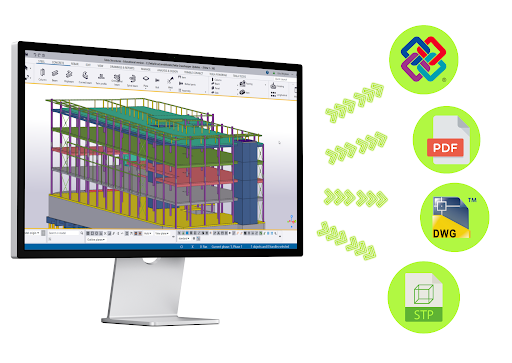
End-of-project deliveries are still painfully manual in many Tekla workflows. Your own workshop description on deliveries already sums up the opportunity well: revision handling, rule-based IFC and DWG export, file checks, and delivery preparation can all be automated. Tekla’s documentation supports the rest. IFC export writes the file into a chosen folder and creates a log that can be reviewed, drawing PDFs can be printed from the Print drawings workflow through Document Manager, multiple drawings can be exported to DWG, DXF, or DGN in one operation, and Document Manager is built to handle PDFs, IFC files, and DWGs efficiently.
Automating deliveries
Grasshopper turns those separate commands into one repeatable process. Instead of clicking the export button a hundred times and manually sorting the result, you can build a delivery script that always creates the right folders, the right file groups, the right revision naming, and the right mix of PDFs, IFC files, DWGs, and reports in the same quality every single time.
7. Bolts and welds.
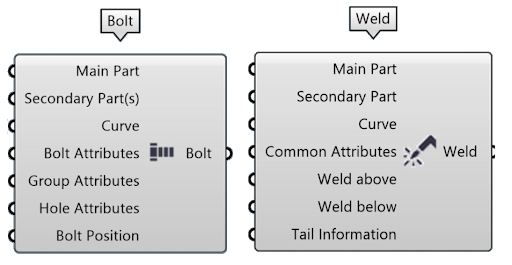
Weld components have been available since version 1.18 and bolt components since version 1.21, and the official component documentation now includes dedicated weld attributes, bolt attributes, hole attributes, bolt group attributes, and bolt positioning tools.
Bolts and welds
In Tekla, they also drive assembly logic. The product documentation states that both bolts and welds can create or connect assemblies and sub-assemblies. So this automation is highly practical for steel design. You can standardize hole patterns and offsets on repetitive nodes, apply bolt arrays without re-clicking the same pattern, keep weld sizes consistent across similar details, and reduce the drift that appears when manual detailing starts varying from user to user.
Grasshopper in Tekla Training
If you feel that Grasshopper could be the antidote to all those manual clicks in steel design, but you don’t know where to start, we created a dedicated training program for Tekla users.
Inside Grasshopper in Tekla Training, you will learn how to automate repetitive Tekla workflows, stop wasting hours on manual clicks, cut drawing work from hours to minutes, and drastically reduce the risk of design errors.
Join the waiting list at grasshopperintekla.com, and we will let you know when the next edition opens.
You have successfully joined our subscriber list. Check your inbox. Confirm email in order to get access BIM Case Studies from the biggest Norwegian projects.
Reasons to Subscribe to the BIM Corner List:
BIM CASE STUDIES
After reading this guide, you will learn:
How BIM is used on the biggest projects in Norway
What were the challenges for the design team and how were they solved
What were the challenges on the construction site and what was our approach to them
News From BIM World
Every Thursday you will get a package of news and useful links from the BIM world.
No Hype
Just real content that’s meant to make a difference in your BIM knowledge.
This site uses cookies to offer social functions, analyze traffic and conduct remarketing activities. Details can be found in the privacy policy (info button).