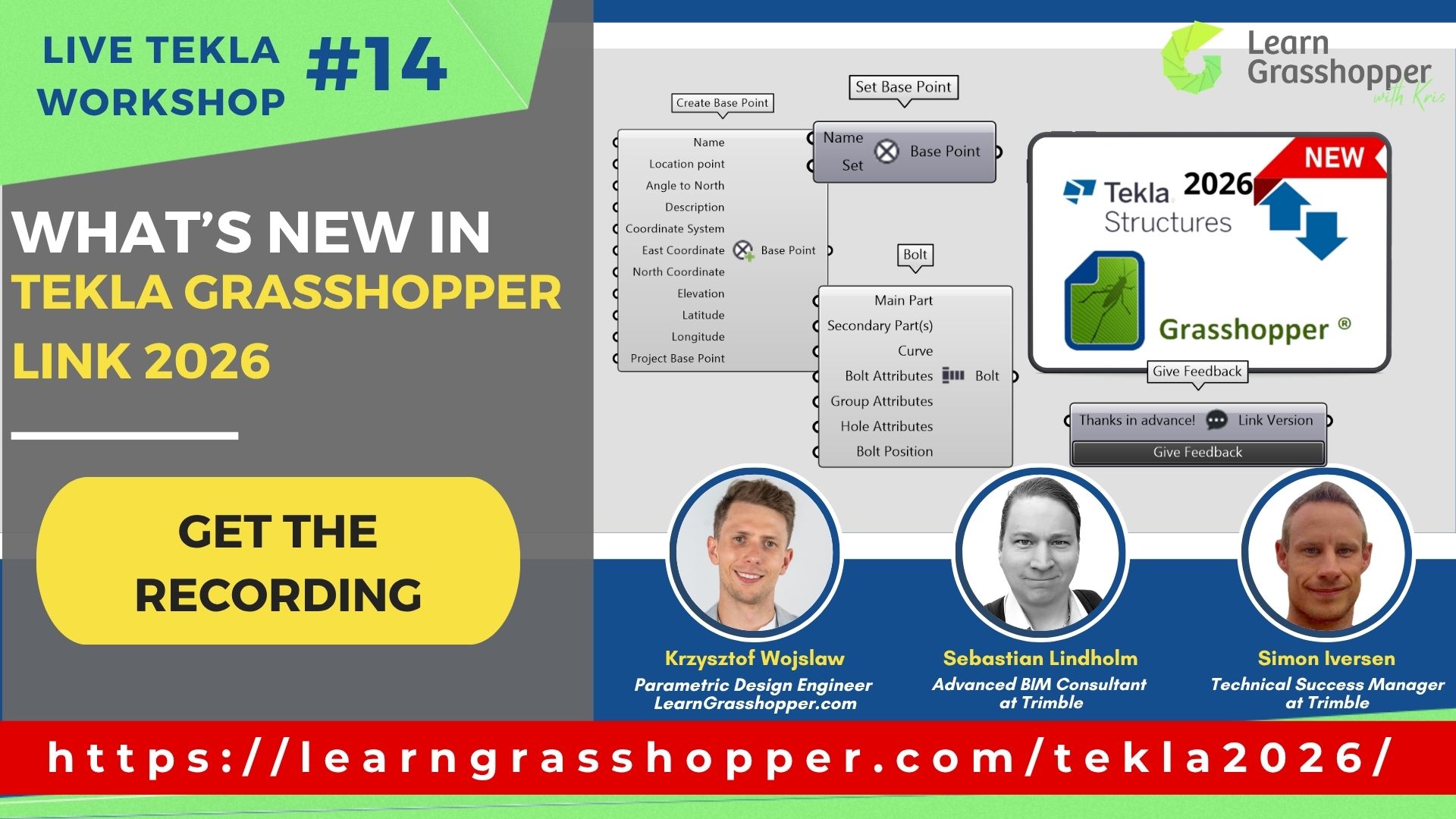
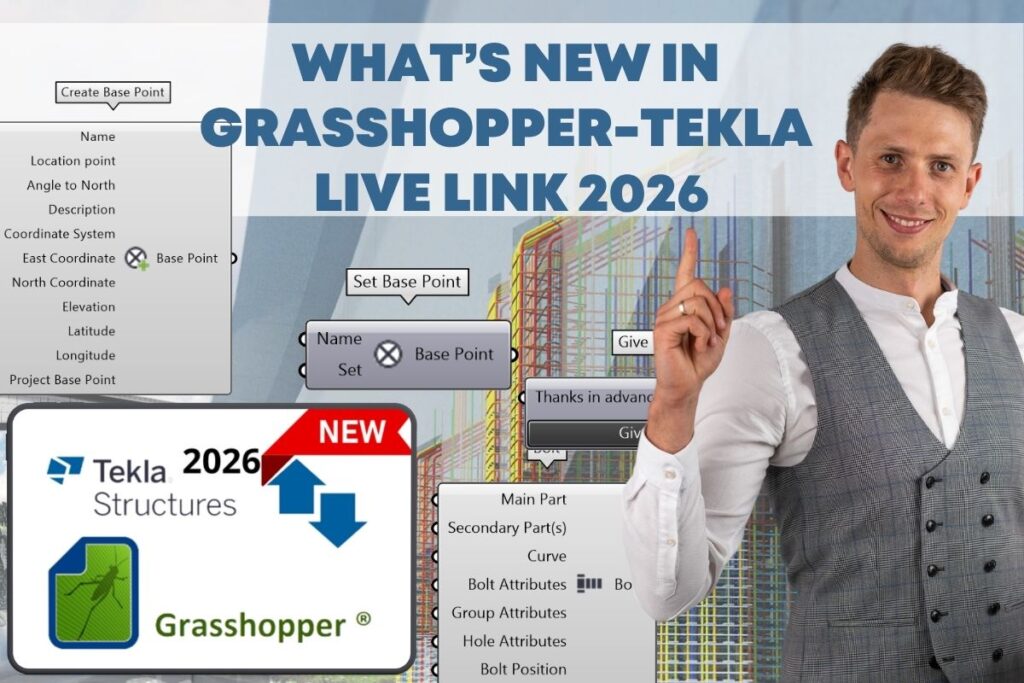
Grasshopper-Tekla Live Link 2026 brings some of the most practical workflow improvements we have seen in a while. From better rotation control and bolt handling to base points and beam splitting, this update makes parametric work in Tekla more flexible and easier to manage. In this article, I break down the biggest new features, how they worked before, and what they can change in real projects.
In the webinar “What’s New in Grasshopper-Tekla LiveLink 2026”, developers Simon Iversen and Sebastian Lindholm showed the most important new features and improvements. I put together a short summary of the biggest changes, what’s new, what worked differently before, and what this means in practice.
Table of Contents
Major Changes in LiveLink 2026
Calculate Rotation component
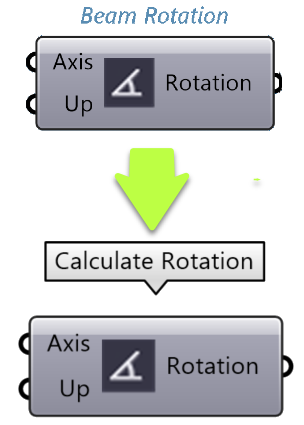
The old Beam Rotation has been renamed and extended. The new Calculate Rotation computes the needed angle for beams/columns and for items or bolt groups based on a desired orientation. In other words, you can plug its output into an object’s rotation input to align items and even entire bolt patterns automatically. Before, rotation support was limited to individual beams. Now, it covers more object types ( “Previously called ‘Beam Rotation’. Calculates rotation… for beam, item or bolt group”).
Calculate rotation
Bolt Group Attributes & Bolt Position
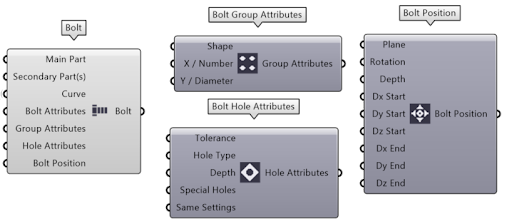
Two new GH components let you define bolt patterns end-to-end. Bolt Group Attributes allows setting hole/bolt group properties (spacing, number of bolts, types, etc.), and Bolt Position sets the origin and offsets of that group. In practice you feed these components a main part and optionally a secondary part, then specify spacing and offsets. “Set the group attributes for a bolt group” and “Set the position and offsets for a bolt group”. Previously, bolt creation was more manual (using individual bolt components or custom scripts). Now you have dedicated nodes for complete bolting.
Bolt Group Attributes & Bolt Position
Base Point support
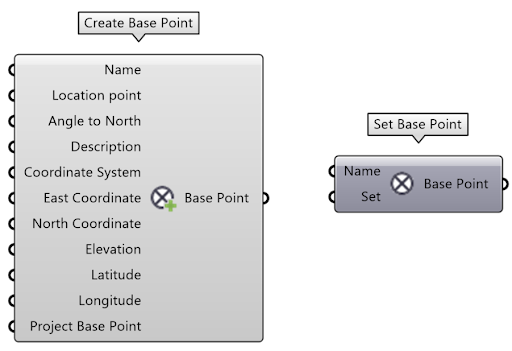
Grasshopper can now create and use Tekla base points. A new Create Base Point component generates a model base point, and Set Base Point activates a chosen base point in Tekla. “Create Base Point – Creates a Base Point in Tekla… Use the Set Base Point component to set the base point.”. Before LiveLink 2026, there was no Grasshopper node for base points. This makes it much easier to work with local coordinates and reference points directly in GH scripts.
Create base point
Split Beam component
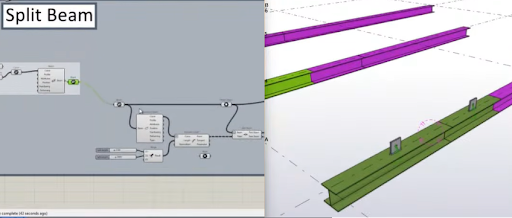
A new Split Beam component was shown, allowing a Tekla beam to be divided at given points or distances. You input a beam object and a list of split positions, and it outputs multiple shorter beam objects. This lets you parametrize breaks in long members directly in Grasshopper.
Split beam component
Find Linked Component
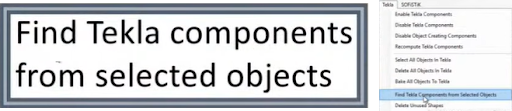
Now you can select objects in Tekla and identify the Grasshopper component that created them. In other words, you can pick model objects and the system highlights which GH node produced them. This is a developer tool for debugging GH→Tekla workflows.“Find GH component from selected objects”
Find linked component
Item Orientation via Plane
Item components can now use a plane for insertion orientation. For example, feeding a plane into an Item component sets its rotation. This made aligning slabs or plates easier in the demo.
Watch the recording and get bonus files
This was just a quick summary of the biggest confirmed updates. To see everything in practice and get access to the materials presented during the workshop, make sure to watch the full recording and download the files.
You have successfully joined our subscriber list. Check your inbox. Confirm email in order to get access BIM Case Studies from the biggest Norwegian projects.
Reasons to Subscribe to the BIM Corner List:
BIM CASE STUDIES
After reading this guide, you will learn:
How BIM is used on the biggest projects in Norway
What were the challenges for the design team and how were they solved
What were the challenges on the construction site and what was our approach to them
News From BIM World
Every Thursday you will get a package of news and useful links from the BIM world.
No Hype
Just real content that’s meant to make a difference in your BIM knowledge.
This site uses cookies to offer social functions, analyze traffic and conduct remarketing activities. Details can be found in the privacy policy (info button).